Entry_02 // Date: 2026-03-09 10:45:43
Simplifying SQL
Getting Started
We got a Job at SkyNet!
Hey you got a Job at SKYNET as a Database Manager. You are responsible for sprawling da vast collection of data points that must be accessed, manipulated, and managed.
Now You need to practice!
The first thing we need to do is set up our local server .
We could set up a Database Management Server like Postgres or MySql but for simplicity we are going to use SQLITE
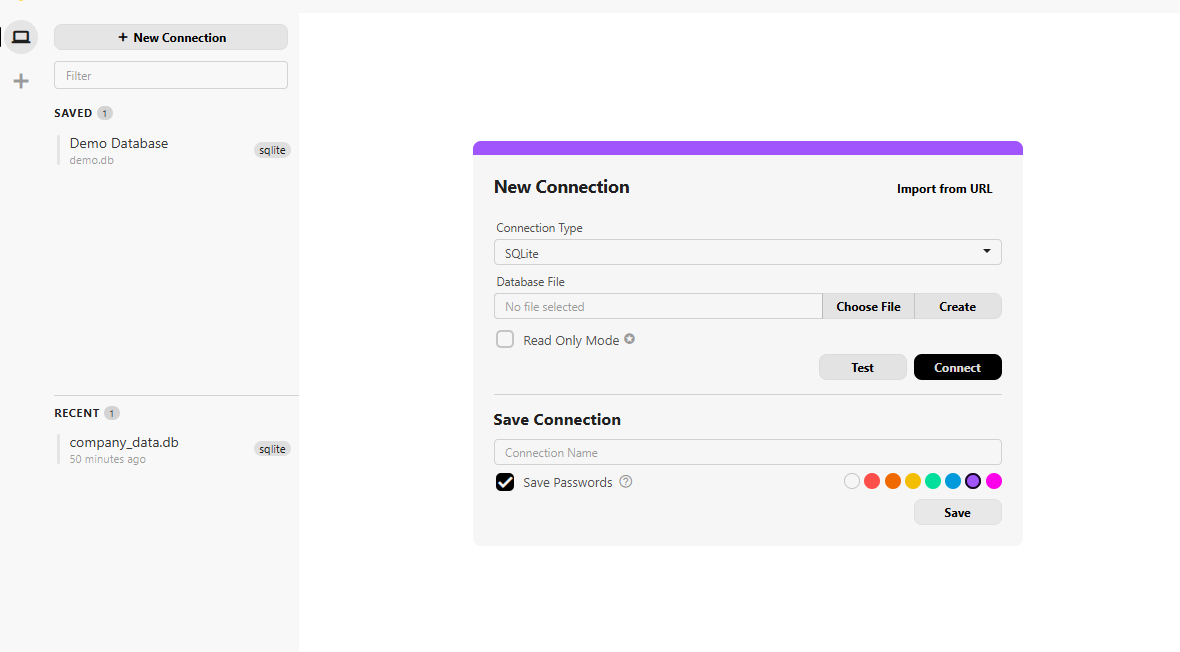
Sqlite serves as a "light" version of a SQL engine. It is serverless, meaning You doesn't need to install a massive infrastructure to get Started. We could set this up quickly with python (You can do that if you already know python) but for newbies we are going to use BeeKeeper Studio .
I find this platform easy to setup and get into the crude aspects of writing your SQL commands.
You can go ahead and quickly create the new file (with .db extensions) or using python (creating a seperate folder, create your .py file and write command). 👍
import sqlite3

connection = sqlite3.connect('skynet_data.db')
cursor = connection.cursor()

# Read the SQL file
with open('setup_database.sql', 'r') as f:
    sql_script = f.read()

# Execute the entire script
cursor.executescript(sql_script)

connection.commit()
connection.close()
Data Defintion
Before we proceed. I am assuming that you were able to create your db files !.
Now we have created our db, the next thing is to upload our data right? .
Now there are 2 way of uploading our data and I will use a simple analogy to explain .
We have a container representing our database. We can put different items into that database. We can upload our users , books, authors, article, log files, etc into our container and this is pretty straightforward but wait a min !
Imagine we have 100s of each item into that container, imagine 1000s ..
This could get tricky when our lords in SKYNET tell us to find a specific user they wish to "Investigate".
Instead imagine we have a specific mini sections in our container that allows us to put users in the user section, books in the book section and so on. Make our work so much easier right ? .
This is basically Structured and Unstructured data. I dont think I need to tell u what method which is which.
SQL deals with the structured data (Structured is literally in the name right ?). SQL allows to create these sections (which are called TABLES) set the RULES, and the BLUEPRINT of which each TABLE to be runned by.
Some of the Rules we can work on include
- Constraints
- Data Types
/* DATABASE STRUCTURE DEFINITION (DDL)
  ----------------------------------
  DATA TYPES USED:
  - INT: Whole numbers (Integers)
  - VARCHAR(n): Variable character strings (with a limit of 'n')
  - TIMESTAMP: Date and time tracking

  CONSTRAINTS USED:
  - PRIMARY KEY: Unique identifier for every row
  - NOT NULL: Field must contain data (cannot be empty)
  - UNIQUE: No two rows can have the same value in this column
  - DEFAULT: Automatic entry used if no data is provided
*/

-- 1. USER MANAGEMENT TABLE
CREATE TABLE IF NOT EXISTS users (
    id INT PRIMARY KEY,
    username VARCHAR(50) NOT NULL UNIQUE,
    age INT NOT NULL,
    email VARCHAR(100) NOT NULL UNIQUE,
    created_at TIMESTAMP DEFAULT CURRENT_TIMESTAMP
);

-- 2. AUTHOR REGISTRY TABLE
-- Used to track the creators in the system independently
CREATE TABLE IF NOT EXISTS authors (
    id INT PRIMARY KEY,
    first_name VARCHAR(50) NOT NULL,
    last_name VARCHAR(50) NOT NULL,
    nationality VARCHAR(50) DEFAULT 'Unknown',
    bio TEXT
);

-- 3. BOOK INVENTORY TABLE
-- Note: Author name is stored as a string here to avoid Foreign Key IDs
CREATE TABLE IF NOT EXISTS books (
    id INT PRIMARY KEY,
    title VARCHAR(150) NOT NULL,
    author_name VARCHAR(100) NOT NULL,
    isbn VARCHAR(20) UNIQUE,
    published_year INT,
    is_digital_copy BOOLEAN DEFAULT 0
);
So what did we just do ?
So we just created our TABLES but if you just ran the above code, You may be a lil bit confused
What did we just do ?
Lets look at our user table and cascade down from there.
CREATE TABLE IF NOT EXISTS users : We just used SQL to tell our database to create a TABLE called 'users'. We added a carveat those. "if not exists" (check if a table with a name users exists) . This prevents us getting an error and only creating this table provided that TABLE doesnt exist.
id INT PRIMARY KEY : Every User Data we wish to store in the USER table needs to have a unique identifier ( we would called the id). just naming this field id is not enough , we need to tell it to be a PRIMARY KEY (which tells it our db to unique identify each entry and ensure that it not nullable).
username VARCHAR(50) NOT NULL UNIQUE: as you should be able to tell each username should be unique, not empty (NOT NULL) and accept variable character with a limit of 50 characters.
We can keep going but by now you should have gotten the gist of the TABLES.
As you go further in your quest to serve masters at skynet you will learn more about RULES and CONSTRAINT.
More Action with our TABLES
We have created our TABLES but the truth is that shit happens.
We make need to change information in our TABLE, add new columns to our TABLE, UPDATE column rules., remove a column because it has gotten uselesss maybe delete the TABLE all together.
The list is endless.
As Database Admin we would quickly find out that original blueprint can't be always and is customed to tweaks.
For example, lets add a column in users to check if a user is an admin, lets change the name of the books table to inventory, and while we at this lets change the column name 'username' in user table and drop table 'authors' cause our overlords have deemed it useless.
Let Test Run a bunch of these
-- Adding a new column to an existing table
ALTER TABLE users
ADD COLUMN is_admin BOOLEAN DEFAULT 0;

-- Changing the name of the entire table
ALTER TABLE books
RENAME TO inventory;

-- Changing a specific column name
ALTER TABLE users
RENAME COLUMN username TO login_handle;

-- The "Nuclear" Option: Deletes the table and all its data
DROP TABLE IF EXISTS books;
Associating Tables

Hey we have created our sections and now the logical step would be to start inserting our data
You are right !
but lets take a slight detour (dont worry it all part of our path as database admins) . We have established that putting all our data into an unstructured container is Nightmare fuel and creating this sections help us in sectioning the information but hold up!. what if we have a we want to know which item in our inventory table belongs to which user?.
A simple solution would be attaching the user name as new column in inventory. that Brillant !. but before you go updating your table. what about the email of the user, age and so on . Hey we can add the new information in !. I hope u are able to spot a slight problem with this plan.
The most obvious one is that we are entering the same Data in two places. Another obvious one is that mistakes can happen your may add a user name as Richey and when writing in the inventory we write Richy. This are basically 2 different users.
Now lets track back . Instead of entering all this information why not just set give a inventory a specific key that associates a user to the inventory. That makes our life easier doesnt it. We can just find the key and look for the user that owns that key.
Now you may have easily figured that out in the first. I apologise for the long narration 😭 .
For this to work, we need to use a key that is unique to that user. And what is more perfect than our ID we are using it as our unique identifier so that makes it soo much easier for us.
/* ASSOCIATING TABLES
  ------------------
  FOREIGN KEY: A column that links to the PRIMARY KEY of another table.
  REFERENCES: Tells SQL exactly which table and column to look at.
*/

CREATE TABLE IF NOT EXISTS user_logs (
    log_id INTEGER PRIMARY KEY AUTOINCREMENT,
    user_id INT NOT NULL,  -- This will be our Foreign Key
    action_type VARCHAR(50) NOT NULL,
    device_ip VARCHAR(15),
    logged_at TIMESTAMP DEFAULT CURRENT_TIMESTAMP,

    -- This is where the association happens:
    FOREIGN KEY (user_id) REFERENCES users(id)
);
Getting Data in our database.
So we have set up our database.
Thats great but one thing is lacking. NO DATA !
This is very important. Infact that is the only point of having a database in the first place.
We should be able to add information (data) to our database, delete information, update, search , round up and many more.
To get started we would have users data. lets work with that
It is important to note that each data we input needs to follow the rules we set for our database blueprint when creating it
Meaning that we can't set the age to be "eleven" when the field is expecting integers and we can't repeat name of user if the name is expected to be unique.
-- Adding a single user to the 'users' table
INSERT INTO users (id, username, age, email)
VALUES (1, 'stewie', 28, 'stewie@techhub.com');

INSERT INTO users (id, username, age, email)
VALUES
(2, 'brian', 32, 'brian@research.org'),
(3, 'lois', 40, 'lois@management.com');

-- Changing a specific user's email
UPDATE users
SET email = 'stewie_lead@techhub.com'
WHERE id = 1;

-- Increasing everyone's age by 1
UPDATE users
SET age = age + 1;

-- Removing a specific user by their ID
DELETE FROM users
WHERE id = 3;

-- Removing all users over a certain age
DELETE FROM users
WHERE age > 65;
Filtering Through Our Database
We’ve successfully pushed data into the SKYNET infrastructure. That’s awesome... in a "hopefully this doesn't lead to a robot uprising" kind of way.
But as a Database Manager, We know that data is useless if it’s just sitting in a digital vault. The true power of SQL lies in Data Querying (DQL). Whether we are verifying user permissions, performing security analysis, or generating a report for the higher-ups, we need to know how to pull specific answers out of the noise.
We are going to keep this simple. To master the basics, we needs to perform some essential operations:
1. The SELECT (Viewing the Data)This is our"Flashlight." It allows us to see exactly what is inside a table. we can look at everything, or just specific columns like username and email.
We often need to know the scale of our database. How many active nodes are there? How many users are registered? COUNT gives him a single number representing the total list.
In a tech environment, identifying the "outliers" is key. we use MIN and MAX to find the youngest and oldest users (or the lowest and highest server temperatures).
To understand the "typical" user, we calculate the Average. This is vital for high-level analysis and identifying trends within the data.
6. WHERE
Where allows you to pinpoint the specfic rows that you are intrested in. You can filter by exact matches using the = sign, or by ranges using symbols like > (greater than) or < (less than).
5. Pattern Matching
Sometimes, as a Database Manager, you don't have the exact ID or the perfect spelling of a username. You might only remember that a user's name started with "St" or that their email was from a specific domain like "gmail.com."
The LIKE operator allows for Pattern Matching using "Wildcards."
-- "Show me every user in the system"
SELECT * FROM users;

-- "Just show me the usernames and their ages"
SELECT username, age FROM users;
-- "How many users are currently in the SKYNET database?"
SELECT COUNT(*) FROM users;
-- "Who is the youngest user (Min) and who is the oldest (Max)?"
SELECT MIN(age), MAX(age) FROM users;
-- "What is the average age of a SKYNET user?"
SELECT AVG(age) FROM users;
SELECT * FROM users
WHERE username LIKE 'Ste%';
SELECT * FROM users
WHERE email LIKE '%@gmail.com';
-- This finds 'brian_data', 'database_admin', or 'bigdata_user'
SELECT * FROM users
WHERE username LIKE '%data%';
Connecting the Dots
As you can recall, our data is split across multiple tables making our data clean. For example if SKYNET needs a full data report like if we wish to see our users together with their system logs. a JOIN makes that so much easier for us.
The JOIN acts as our bridge between tables.
We have 3 types of JOIN statements.
- INNER JOIN (most common) - This only shows results where there is a match in both tables. If a user has no logs, they won't show up. If a log has no user, it won't show up.
- LEFT JOIN - use this when we wants to see all users, even those who haven't performed any actions yet. If a user has no logs, the log column will just say NULL.
-- "Show me the username and their specific action from the logs"
SELECT users.username, user_logs.action_type
FROM users
INNER JOIN user_logs ON users.id = user_logs.user_id;

-- "Give me a count of users for every age represented in our database"
SELECT age, COUNT(*)
FROM users
GROUP BY age;
GROUP BY
This are the last sections & many people get stuck here. Don't fret we are going to make it soo much easier to understand. LOCK IN
As a Database Manager, we may not always want to see individual rows rather we would love to see the bigger picture. this is where group by comes in. This takes our data and squash them into sections based on shared value.
Imagine we want to be get the count of users for every age represented in our database. This is a perfect example for GROUP BY.
-- "Give me a count of users for every age represented in our database"
SELECT age, COUNT(*)
FROM users
GROUP BY age;
Having
You already know WHERE filters individual rows. But what if you want to filter the sections you just created
Before getting started there one basic rule to know when using Having : "You cannot use WHERE on an aggregate (like Count or Avg). You must use HAVING".
Imagine our lord at SKYNET only wants to see age groups that have more than 5 users.
We have Grouped the Items using GROUP BY now we can use Having
-- "Show me age groups, but only if there are at least 5 people in that group"
SELECT age, COUNT(*)
FROM users
GROUP BY age
HAVING COUNT(*) > 5;
Practice Makes Perfect
You’ve covered a massive amount of SQL.
By now, some concepts probably feel like second nature, while others might still feel "what the hell this". Its Fine. Whether you feel like a prodigy now or it feels some things are off . Its all part of it !
However, here is the "Hard Truth" from the server room: The only way to become a boss at SQL is through consistent, hands-on practice. There is no shortcut, no "Easy Mode," and no "Undo" button in the real world.
keep building, and most importantly, keep practicing.